
Scraping Data
Last updated on 2026-08-10 | Edit this page
Overview
Questions
- How do I avoid the tedium/error-prone-ness of clicking lots of links or making lots of API requests by hand?
Objectives
- Use pagination to get all available data
- Automatically download files from a long listing of links on a page
Introduction
Now we’ve learned about how to download data from websites and from APIs. But some questions linger…
often there are webpages with lots of links to data you want… copy-pasting each link into our code is a pain, and hardly better than just clicking each link to download the data. Is there a better way?
you might also remember seeing that ‘warning’ from the EIA API about only returning 5000 rows at a time… how can we get more?
The thread connecting these two questions/problems is that sometimes your data lives behind many URLs, not just one. So you have to go get a bunch of separate data and glue it all together.
Web scraping
Let’s start by downloading files from a webpage that has many links - the good old EIA website.
For all the benefits of the API, some of the EIA 923 data is only available through the downloadable spreadsheets - and the spreadsheets are only available by clicking through the list of links on the EIA 923 page:
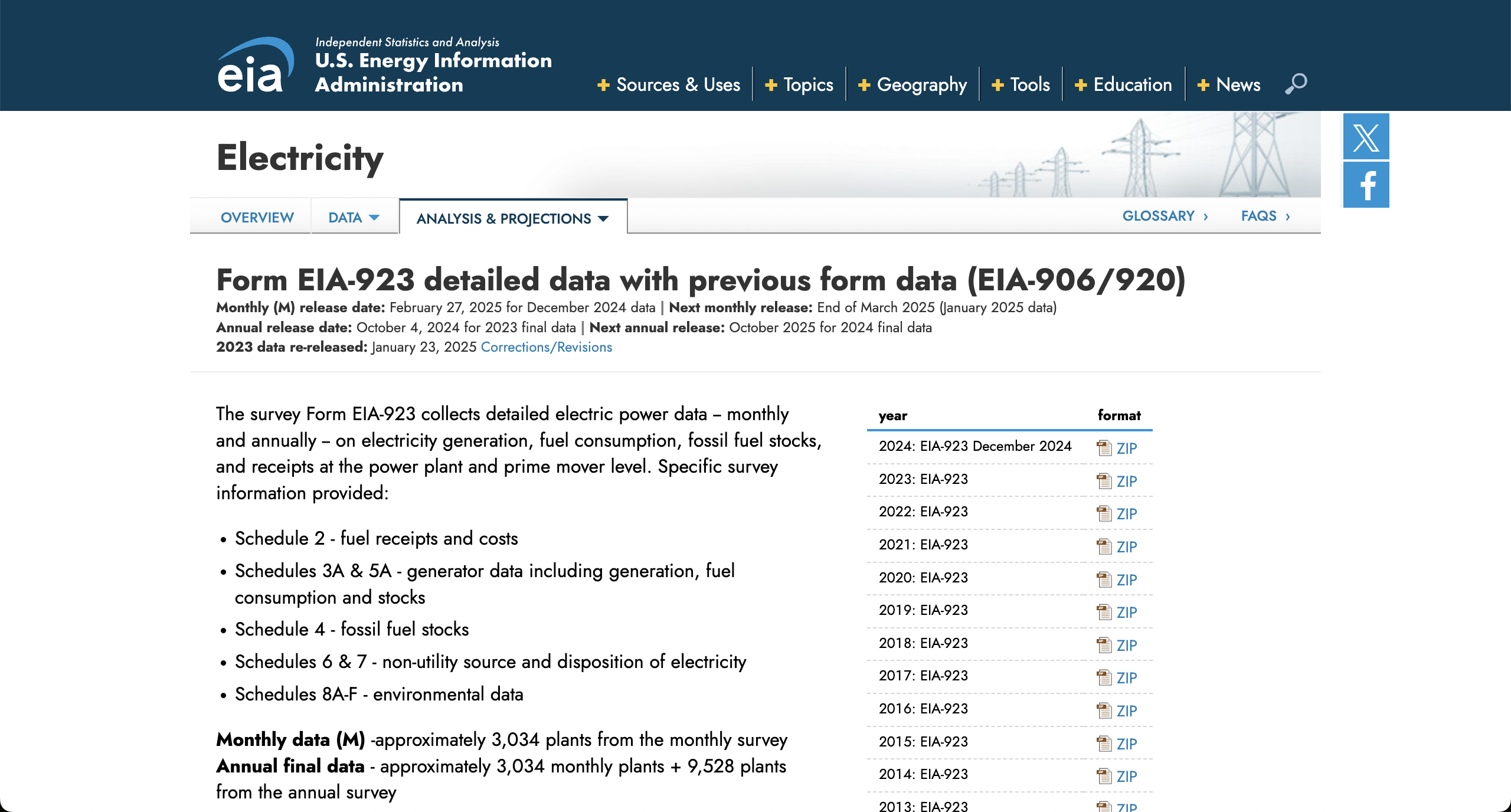
There’s only a couple dozen, so we could probably get away with just downloading the files by clicking the links. But, you can imagine how it could quickly get out of hand with multiple pages or many more links. We’ll keep it simple for now and just stick with the EIA 923 page as an example.
Example: EIA 923/906
Skill: Using BeautifulSoup to extract tags from a webpage
First, let’s import the libraries we’ll need to use. Of course we’ll
use our workhorse requests. We’ll also need a library
called “Beautiful Soup” that helps us work with the structure of a
webpage - just like pandas can help you work with the structure of a csv
or parquet file. Beautiful Soup is imported as bs4.
PYTHON
import bs4
import requests

# while we're doing the imports, might as well store the URL in a variable.
eia_923_url = "https://www.eia.gov/electricity/data/eia923/"
To get the links, first we need to get the webpage itself - that’s where the links are. Let’s see what the webpage looks like!
OUTPUT
'<!doctype html>\r\n<html>\r\n\r\n<head>\r\n\t<title>\r\n\t\tForm EIA-923 detailed data with previous form data (EIA-906/920) -\r\n\t\tU.S. Energy Information Administration (EIA)\t</title>\r\n\t<meta property="og:title" content="Form EIA-923 detailed data with previous form data (EIA-906/920) - U.S. Energy Information Administration (EIA)">\r\n\t<meta property="og:url" content="https://www.eia.gov/electricity/data/eia923/index.php">\r\n\t<meta name="url" content="https://www.eia.gov/electricity/data/eia923/index.php">\r\n\t<meta name="description" content="Clean Air Act Data Browser" />\r\n\t...OK, there is some recognizeable text there, but also a bunch of extra stuff. Notice the many angle brackets enclosing words that seem to be trying to tell us something. This document is in HTML format, which stands for Hyper Text Markup Language. The bracketed words are called tags, and they wrap around the content you see when the HTML file is rendered in your browser.
- Tags usually come in pairs, and can nest together to create a hierarchy.
- Each tag has a name, which is the first word inside the angle brackets.
- A tag may also include attributes, providing a way to specify more complex metadata about a given piece of content.
In this way, the tags encode information about the structure of the document, the type of information in each content snippet, and how the browser should display it. We can use the tags to filter through the document to find what we actually need.
HTML is a vast and chaotic world, with exceptions to every rule.
Fortunately, bs4 is here to help tame the chaos a bit. The
core of the library is the BeautifulSoup class, which takes
in a website’s HTML and adds some useful functionality to it:
The first thing you’ll notice is that the output looks neater:
OUTPUT
<!DOCTYPE html>
<html>
<head>
<title>
		Form EIA-923 detailed data with previous form data (EIA-906/920) -
		U.S. Energy Information Administration (EIA)	</title>
<meta content="Form EIA-923 detailed data with previous form data (EIA-906/920) - U.S. Energy Information Administration (EIA)" property="og:title"/>
...
We’ll also be able to filter through this complicated set of tags. We
can use the find_all function to grab just the
title tags. (Ideally there is only one title per HTML
document, but you never know)
In HTML, links are wrapped in a tags (the “a” stands for
“anchor”). Let’s see if that’s enough to get the links we want:
OUTPUT
[<a name="top"></a>,
 <a href="http://x.com/eiagov/" target="_blank"><span class="ico-sticker twitter"></span></a>,
 <a class="addthis_button_tweet"></a>,
 <a href="https://www.facebook.com/eiagov" target="_blank"><span class="ico-sticker facebook"></span></a>,
 <a class="addthis_button_facebook_like at300b" fb:like:layout="button_count"></a>,
 ...
 <a class="ico zip" href="xls/f923_2024.zip" title="2024"><span>ZIP</span></a>,
 <a class="ico zip" href="archive/xls/f923_2023.zip" title="2023"><span>ZIP</span></a>,
 <a class="ico zip" href="archive/xls/f923_2022.zip" title="2022"><span>ZIP</span></a>,
 <a class="ico zip" href="archive/xls/f923_2021.zip" title="2021"><span>ZIP</span></a>,
 <a class="ico zip" href="archive/xls/f923_2020.zip" title="2020"><span>ZIP</span></a>,
 ...
OK, so we see a big list of tags, some of which we don’t care about,
but others appear to be links to EIA-923 ZIP files. When a link points
to a ZIP file, the URL for the ZIP file is included in an
href attribute. Almost every URL you’ll want to use for
scraping will live in one of these href attributes.
We can filter based on attributes like this:
This shows us only the a tags with hrefs
defined:
OUTPUT
[<a href="http://x.com/eiagov/" target="_blank"><span class="ico-sticker twitter"></span></a>,
 <a href="https://www.facebook.com/eiagov" target="_blank"><span class="ico-sticker facebook"></span></a>,
 <a class="eia-accessibility" href="#page-sub-nav">Skip to sub-navigation</a>,
 <a class="logo" href="/">
 <h1>U.S. Energy Information Administration - EIA - Independent Statistics and Analysis</h1>
 </a>,
 <a class="nav-primary-item-link menu-toggle" href="javascript:;">
And then you can filter those only for the ones that point at actual ZIP files:
PYTHON
eia_923_zip_tags = []
for a in eia_923_a_hrefs:
    if a["href"].lower().endswith(".zip"):
        eia_923_zip_tags.append(a)
eia_923_zip_tags
OUTPUT
[<a class="ico zip" href="xls/f923_2024.zip" title="2024"><span>ZIP</span></a>,
 <a class="ico zip" href="archive/xls/f923_2023.zip" title="2023"><span>ZIP</span></a>,
 <a class="ico zip" href="archive/xls/f923_2022.zip" title="2022"><span>ZIP</span></a>,
 <a class="ico zip" href="archive/xls/f923_2021.zip" title="2021"><span>ZIP</span></a>,
 ...
 <a class="ico zip" href="archive/xls/f906920_2003.zip" title="2003"><span>ZIP</span></a>,
 <a class="ico zip" href="archive/xls/f906920_2002.zip" title="2002"><span>ZIP</span></a>,
 <a class="ico zip" href="archive/xls/f906920_2001.zip" title="2001"><span>ZIP</span></a>,
 <a class="ico zip" href="archive/xls/f906nonutil2000.zip" title="2000"><span>ZIP</span></a>,
 <a class="ico zip" href="archive/xls/f906nonutil1999.zip" title="1999"><span>ZIP</span></a>,
 <a class="ico zip" href="archive/xls/f906nonutil1989.zip" title="1989-1998"><span>ZIP</span></a>]
We probably want to skip those Form 906 links too.
PYTHON
eia_923_zip_tags = []
for a in eia_923_a_hrefs:
    if a["href"].lower().endswith(".zip") and "f923" in a["href"]:
        eia_923_zip_tags.append(a)
eia_923_zip_tagsPYTHON
eia_906_url = "https://www.eia.gov/electricity/data/eia923/eia906u.php"
eia_906_response = requests.get(eia_906_url)
eia_906_soup = bs4.BeautifulSoup(eia_906_response.text)

eia_906_a_hrefs = eia_906_soup.find_all("a", href=True)
eia_906_xls_tags = []
for a in eia_906_a_hrefs:
    if ".xls" in a["href"].lower():
        eia_906_xls_tags.append(a)
Skill: Downloading data from tag URLs
OK, now we have our tags, time to use them to download the data! Let’s try it with one tag first:
PYTHON
import pandas as pd
eia_906_one_link = eia_906_xls_tags[0]
eia_906_one_df = pd.read_excel(eia_906_one_link["href"])
Oh no! We get an error:
OUTPUT
FileNotFoundError: [Errno 2] No such file or directory: '/electricity/data/eia923/archive/xls/utility/f7592000mu.xls'Looks like the URL in the href is incomplete. It turns
out that as far as the internet is concerned, this is a relative
path - much like the relative paths you have to deal with when
loading data on your computer. The full URL we want is
https://www.eia.gov/electricity/data/eia923/archive/xls/utility/f7592000mu.xls
- which combines the URL of the page we got the link from
(https://www.eia.gov/electricity/data/eia923/eia906u.php)
with the fragment we got in the href attribute
(/electricity/data/eia923/archive/xls/utility/f7592000mu.xls).
This is a super common thing to have to do, so there’s a useful bit
of the Python standard library for this:
urllib.parse.urljoin:
PYTHON
from urllib.parse import urljoin

eia_906_one_full_url = urljoin(eia_906_url, eia_906_one_link["href"])
eia_906_one_df = pd.read_excel(eia_906_one_full_url)
We can also do the string concatenation ourselves with
eia_906_url + "...", but there are a surprising amount of
details to get wrong here so it’s nice to just use the function that
works.
Challenge: get the EIA-906 file contents
OK, so now we know how to scrape a bunch of URLs from a webpage.
Let’s read the EIA-906 files into our program! Since they’re XLS files,
we can read them directly from a URL using
pandas.read_excel.
Try making a list, eia_906_dataframes, that includes all
of the data files from the EIA-906
page - start with the (minimal) scaffold below!
Detour: What if it’s not tabular data?
OK, but what if you’re downloading a URL that pandas doesn’t know how to read?
PYTHON
eia_923_one_link = eia_923_zip_tags[0]
eia_923_one_full_url = urljoin(eia_923_url, eia_923_one_link["href"])
eia_923_one_full_url
Pandas doesn’t have a read_zip; anything could be in
it.
But if we manage the request ourselves, we can save the file to disk.
PYTHON
eia_923_one_link_response = requests.get(eia_923_one_full_url)
with open("f923_2026.zip", "wb") as savefile:
  savefile.write(eia_923_one_link_response.content)
Because we have a whole list of links, we’ll want to be able to fetch
the filename from the link href. Python’s standard library can help with
that, using pathlib:
PYTHON
from pathlib import Path

eia_923_one_path = Path(eia_923_one_link["href"])
eia_923_one_path.name
So we could loop through all our EIA-923 ZIP files and save them to disk like this:
Skill: From many individual data frames to one
From the last challenge, we have a list of a bunch of dataframes. To
bring them all into one dataframe, we can use pd.concat,
which “concatenates” several dataframes together:
If you use DataFrame.info() you can quickly see that
some columns (YEAR, FIPST, UTILNAME) are more populated than others
(MULTIST, GEN01, etc):
And if you start to dig into the data a bit, such as pulling out the
various values of YEAR, you see that you have
plenty of data cleaning to do before this is really usable for
analysis. But at least you have all of the data in one dataframe
now!
OUTPUT
YEAR
96      10507
97      10468
1999    10296
2000     9617
74       6429
73       6363
75       6362
76       6307
72       6198
71       6130
70       6100
81       5692
85       5692
80       5678
82       5669
84       5661
83       5650
87       5647
86       5634
77       5627
78       5594
79       5554
98       5470
89       5263
88       5241
95       5119
1998     5118
93       5109
91       5107
94       5102
92       5100
90       5074
99         40
0          14
Name: count, dtype: int64Why might you choose to do all this instead of just manually collecting links?
- If it’s a lot of effort to get to each link
- If the data is frequently updated
- If I have to download all the files multiple times
- If I have to combine everything into one big dataset programmatically anyways
- To spare my collaborators from experiencing similar pains
Pagination
Another time you’ll need lots of URLs is when APIs don’t give you everything all at once. Let’s look at an example request to the EIA API we saw last time:
PYTHON
eia_api_base_url = "https://api.eia.gov/v2/electricity"
api_key = "3zjKYxV86AqtJWSRoAECir1wQFscVu6lxXnRVKG8"

first_page = requests.get(
    f"{eia_api_base_url}/facility-fuel/data",
    params={
        "data[]": "generation",
        "facets[state][]": "PR",
        "sort[0][column]": "period",
        "sort[0][direction]": "desc",
        "sort[1][column]": "plantCode",
        "sort[1][direction]": "desc",
        "api_key": api_key
    }
).json()["response"]
There’s a lot of info in here so let’s just look at the keys to start.
The data lives in the "data" key, so let’s take a quick
look at that:
Seems like it’s sensible data, but 5000 rows is a suspiciously round (and small) number. Is there anything funny going on?
Ooh! There’s a warning - what is it?
The API can only return 5000 rows in JSON format. Please consider constraining your request with facet, start, or end, or using offset to paginate results.So if we want a dataset that’s bigger than 5000 rows, we’ll need to make multiple requests. Instead of scraping many URLs from a page, we’ll be generating the URLs ourselves.
This process of “get N rows, then the next N rows, etc.” is called “pagination” - like going to the next page of Google results.
We’ll go to the docs to look
at this offset parameter:
Offset stipulates the row number the API should begin its return with, out of all the eligible rows our query would otherwise provide.
[…]
https://api.eia.gov/v2/electricity/retail_sales/data?api_key=xxxxxx&data[]=price&facets[sectorid][]=RES&facets[stateid][]=CO&frequency=monthly&sort[0][column]=period&sort[0][direction]=desc&offset=24In the above example, the API will skip over the first 24 eligible rows (offset=24), which translates into 24 months (frequency=monthly).
Let’s try using that. First, let’s pull the common parameters into a variable so it’s a little easier to work with:
PYTHON
common_params = {
    "data[]": "generation",
    "facets[state][]": "PR",
    "sort[0][column]": "period",
    "sort[0][direction]": "desc",
    "sort[1][column]": "plantCode",
    "sort[1][direction]": "desc",
    "api_key": api_key
}

next_page = requests.get(
  f"{base_url}/facility-fuel/data", params=common_params | {"offset": 5000}
).json()["response"]
If we look at that we can see that we do indeed get the next several months of data:
And if we wanted to grab the first 5 pages, we could use a
for loop combined with the range()
function.
range() is super useful - at its simplest, it just
produces, well… a range of numbers.
If you want to start at a specific number, you can do something like:
And if you want to count in different increments, you can do:
Challenge: use range to find
offsets
To fetch a dataframe with 23,456 rows, how many pages of 5,000 rows each do you need to fetch in order to be sure you’ve retrieved everything?
Write code that generates the offset for each page and stores them in
a variable called offsets.
Skill: knowng when to stop
Now that we know how to get multiple pages, we need to know when to stop getting more pages.
Broadly, there are two strategies:
- figure out the total number of results ahead of time, and do some math to figure out how many pages to request (that’s the math you just did!)
- keep getting more pages until you run out of results
Both work, and each has its own downsides:
- the first method only works for APIs that tell you how many results there are.
- the second method can lead to your program running forever in an infinite loop if you mess up.
Since the EIA API tells you how many results there are, let’s work with the first option.
The challenge used a made-up number for the total rows but if we want to fetch the real data we need the real number.
Let’s look at the API response again.
That “total” field looks pretty promising.
So there are about 8,000 rows in this dataset. That’s the last piece you need to be able to do fetch the whole dataframe!
Challenge: use pagination to fetch the full dataframe
OK, now let’s put it all together!
Let’s try to get the net generation data in Puerto Rico that is in the EIA API.
Start with the following code and modify it to work:
PYTHON
all_records = []
for offset in range(0, ???, 5000):
    print(f"Getting page starting at {offset}...")
    page = requests.get(
      f"{eia_api_base_url}/facility-fuel/data",
      params=common_params | {"offset": offset}
    ).json()["response"]
    all_records.append(pd.DataFrame(page["data"]))

df = pd.concat(all_records) # combines all pages into one big dataframe
Further resources
We’ve only just scratched the surface of programmatically getting data from the Internet here. Sometimes, there are obstacles. We can’t teach you how to overcome all of them, but here is a little troubleshooting guide of “something weird? maybe try searching for these keywords.”
- Links not showing up in your
bs4atags?- look at the links using the html inspector in your browser dev tools.
- look at what’s happening when you download files by using the
network tab of your browser dev tools.
- when you click something to download data, or when you load in data for a graph, keep an eye on this. it’s a bit of a firehose though – it will show URLs from any trackers or advertisers used by the site as well as the URLs for the data you’re looking for.
- The HTML you see in browser dev tools is different from
what you get from
requests?- sometimes there’s code that your browser runs after the initial
load, which changes the HTML after the fact.
requestswon’t catch that, but tryplaywrightwhich runs that post-load code. keyword isheadless browser automation. - sometimes servers will be mean to you because of who you say you are
(user agent).
- sometimes they’ll give you some sort of error, or a CAPTCHA
- sometimes they will just not give you any response at all
- If you suspect that… try telling them you’re a real human instead of a bot. Look for “spoofing the user agent” to see guides on how to do this.
- sometimes there’s code that your browser runs after the initial
load, which changes the HTML after the fact.
- Running into rate limits for making too many requests?
- Try adding some delays in your scraping code so that it’s not
hammering the server so hard. The
time.sleepmethod here is your friend. - Do double-check the terms & conditions of the website you’re using - if a website is implementing some rate limit, they probably don’t want you using automated tools to download the data in the first place.
- You might need a ‘web scraping proxy’ service, which will let you get around a lot of limits.
- Try adding some delays in your scraping code so that it’s not
hammering the server so hard. The
- Have to download a file to disk instead of turning it into a
DataFrame immediately?
- Use
response.contentto get the literal bytes that the response is made of - this will help with files like ZIP files that don’t have a nice text representation. - Then use the “wb” mode (“write binary”) to write that data to disk:
- Use
- beautiful soup lets you grab links out of a webpage so that you can then download them!
- if you need to get more than one request worth of results from an API, the API will usually provide some “pagination” capabilities so you can make all the requests programmatically.
- web scraping is a wide world - if you get stuck, try searching for some of the keywords above.